
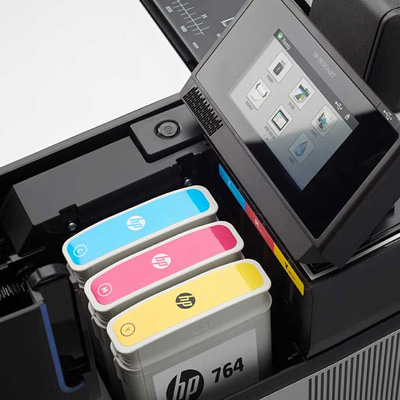
 How to install ink in a printer
How to put ink in an HP printer
Most HP printers use either clip-in cartridges or refillable ink tanks, and the steps to add ink depend on which system you have.
This guide helps you identify the type first, then shows how to replace cartridges or refill tanks cleanly, with quick checks if the printer does not recognise the new ink. You will also learn how to fix streaky prints after a change and how to match the right supplies before you order. Steps vary by model, so follow your printer prompts if they differ.
Which type of HP printer do you have?
Most home HP printers fall into two groups: cartridge printers with a moving carriage that holds black and colour cartridges, and ink tank printers with visible tanks and caps for each colour. The quickest check is to open the access area: cartridges sit on a sliding carriage, while tanks remain fixed inside the body.
If you want a quick visual way to confirm what you have, HP’s explanation of Smart Tank vs ink cartridge printers makes the differences easy to spot. Once you know the type, you can order the right supplies without guessing, whether you’re browsing printer cartridges in general or narrowing it down to ink.
How to replace ink cartridges in an HP printer
Replacing cartridges is usually a clean swap as long as you keep the printer powered on, wait for the carriage to stop moving, and click the new cartridge fully into place. Small issues such as leftover tape or a cartridge that isn't seated account for most “new ink” errors.
Open the cartridge access area
Turn the printer on, then open the cartridge door or lift the lid, depending on your model. Wait until the carriage moves into view and becomes still before touching anything.
Remove the old cartridges
Release the cartridge latch, then slide the old cartridge out gently. If you are changing both cartridges, swap one at a time to avoid mixing up the slots.
Install the new cartridges
Remove the new cartridge from its packaging, peel off all protective tape, then slide it into the correct slot and press until it clicks. HP’s step-by-step method for many DeskJet and ENVY models is shown in their cartridge replacement guidance, which is useful if your layout looks slightly different.
Align the cartridges if prompted
If the printer asks for alignment, load plain paper and follow the on-screen steps. After that, print a quick test to catch faint text or missing colours early.
How to refill ink in HP Smart Tank and Ink Tank printers
Ink tank printers are designed for bottle refills, so the goal is simple: refill the correct colour tank slowly, stop at the fill line, and close everything tightly before moving the printer. Rushing is what usually leads to drips and stains.
Open the ink tank door and caps
Open the access door and identify the required tank. Double-check the colour labels before you open any caps.
Fill the correct tank
Position the bottle over the correct tank opening and let the ink flow steadily. Avoid squeezing hard, and stop once the ink reaches the recommended level. HP’s official steps for this process are outlined in its Smart Tank refill instructions.
Close and clean up
Close the tank cap firmly, wipe the bottle tip, and clean up any small drips immediately. A quick wipe now prevents stains later, especially around hinges and seams.
What to do if your HP printer does not recognise the new ink
If you see “not recognised”, “incompatible”, or “missing cartridge”, start with the simple physical checks before assuming something is faulty. Most of the time, it is tape left on, a cartridge not seated fully, or a restart needed to re-detect the cartridge.
Check tape and seating
Remove the cartridge, confirm that all protective tape is removed, then reinstall it and press it until it clicks. Close the door and wait for the printer to finish its initialisation.
Restart and update
Power the printer off, wait briefly, then power it back on. If the message returns, HP’s troubleshooting flow for cartridge recognition and compatibility errors is a good checklist to follow in the right order.
Instant Ink and subscription checks
If you use a subscription service, the cartridge type and account status can matter. If you recently cancelled or changed settings, you may need to install a standard retail cartridge for normal printing.
How to avoid leaks, stains, and poor print quality after refilling
Most print-quality issues after an ink change stem from either smudges during handling or from running too many cleaning cycles too quickly. You can usually fix streaks with one sensible maintenance step, then stop.
Prevent spills and stains
Keep bottles capped when not in use, wipe up any drips immediately, and avoid touching the contacts or nozzles. For tank printers, refilling over a wipeable surface makes clean-up far easier.
Run a quick maintenance check
If prints look streaky or colours are missing, run one alignment or cleaning tool, then print a small test page. HP’s overview of print quality tools, like alignment and cleaning, helps you choose the right option without wasting ink.
Store spare ink safely
Keep spare cartridges sealed until needed, store them upright, and avoid heat and direct sunlight to prevent ink degradation.
How to find the right HP ink before you buy
The safest way to buy the right ink is to match the exact printer model and the cartridge number, then double-check before you open the packaging. That one habit prevents most returns and compatibility headaches.
Check your current cartridge number
Open the access door and read the number printed on the cartridge label. If you still have the box, the same number appears there, too.
Match the printer model exactly
Use the full model name, not just the family name. Two printers that look similar can take different cartridges.
Choose original or compatible ink
Original cartridges are made by HP. Compatible options vary, so it’s best to match the cartridge number exactly and keep the packaging sealed until you are sure it’s correct. If you want a quick reference for how HP identifies compatible cartridge numbers by model, their guide on finding the right HP ink cartridge is a useful cross-check.
When you are ready to buy, you can browse by category using ink cartridges, check any current savings in clearance, and review the details for delivery and the returns policy before checkout.
Conclusion
Putting ink into an HP printer is simpler if you first confirm whether it uses cartridges or ink tanks. For cartridge models, keep the printer on, wait for the carriage to stop, remove all protective tape, and press each cartridge until it clicks.
For Smart Tank-style printers, top up with the correct colour slowly, close the caps firmly, and wipe up any drips immediately. If the printer does not recognise the new ink, reseat the cartridge, restart the printer, and check the settings if you use a subscription. Print one test page before important documents to check the colour.
To restock, shop ink cartridges from Choice Stationery.
FAQs
How do I know which HP ink cartridge I need?
Check the printer model name and the cartridge number printed on the current cartridge label. Printers in the same family can use different cartridges, so matching the exact model and number is safer than guessing.
Do I need to turn my HP printer on to change the ink?
For most cartridge-based HP printers, yes. The printer requires power to move the carriage into position and stop safely. If the carriage is inaccessible, turning on the printer and opening the access door usually helps.
Why does my HP printer say the cartridge is incompatible?
This often happens if tape is still covering the contacts, the cartridge is not fully seated, or the cartridge number does not match the printer model. Reseating the cartridge and restarting the printer can help it re-detect the cartridge.
Can I refill an HP ink cartridge with a bottle?
Most standard HP cartridges are designed to be replaced, not refilled. If you want bottle refills, you usually need an ink-tank model, such as an HP Smart Tank printer, which is designed for tank refills.
What should I do if prints are streaky after changing ink?
Start with one alignment or cleaning cycle, then print a small test page. Streaks can occur immediately after a change, but repeated cleaning cycles can consume a lot of ink, so it’s best to run maintenance only when needed.
