
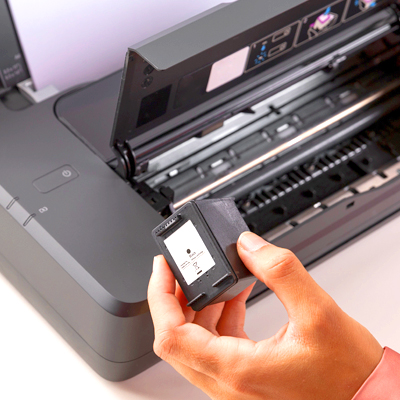
 What Ink Cartridge Do I Need?
What Ink Cartridge Do I Need?
Choosing the right cartridge is usually a quick match, not a guessing game. The key is to identify your printer’s exact model name and the cartridge code that model uses. Once you have those two details, everything else becomes straightforward. You can quickly confirm whether your printer takes ink or toner, whether colours are separate or combined, and whether standard or high-yield is the better fit for how often you print.
The steps below walk through the checks in the same order most manufacturers use, so you can buy the correct cartridge with confidence and avoid costly returns.
|
What to match |
Where to find it |
Why it matters |
|
Printer make and model |
On the printer label or in device settings |
Narrows you to the right cartridge family |
|
Cartridge code |
Printed on the old cartridge or packaging |
Confirms the exact replacement number |
|
Ink or toner |
Printer type (inkjet vs laser) |
Avoids buying the wrong consumable type |
|
Standard or high yield |
Product listing comparison |
Helps balance cost vs how often you replace |
How do you find your printer's make and model?
Start by noting the printer’s full make and model, not just the series name, because small variants can use different cartridges. Manufacturer tools follow this approach, such as Canon's Ink, Toner, and Paper Finder.
Where to find the model on the printer itself
Most printers have a label on the back, underside, or inside a cover panel that shows the model name and sometimes a product number. Write it down exactly as shown, including any letters after the numbers. If the printer has a small screen, the model may also appear in the settings or information menu.
How to check the model in your computer settings
If the label is hard to reach, your computer can often tell you what it’s connected to. In Windows, the printer name appears in your list of printers and can be opened to view properties. On macOS, you’ll usually see the model in Printers and Scanners. If the name looks custom (for example, “Office Printer”), check the driver or info section for the true model.
What to do if the label or box is missing
If you can’t find the label and the computer name is unclear, check past order emails, the printer’s manual, or any setup app you used when you first installed it. If you share the model with someone else in the household, ask what they see on their device list.
If you spot “Epson WorkForce WF 2860” on the back label and note the full model, including the “WF” prefix. The exact model prevents most cartridge-mismatch problems. Next, confirm the cartridge code for the fastest compatibility check.
Which cartridge code should you match for your printer?
Once you’ve confirmed the model, match the cartridge code printed on the cartridge or packaging. If you don’t have the old cartridge, a model-based tool like the Epson UK Printer Ink Finder helps identify the correct cartridge family.
How to read the code on the cartridge label
Remove the cartridge and look for a printed code on the sticker or plastic body. It may be a short number/letter combination or a branded series code. Don’t rely on colour names alone (like “black” or “cyan”), because the same colour can exist under multiple cartridge families.
How to use a cartridge finder if the old one is missing
If the old cartridge is gone, use your printer model to search for compatible supplies. On Choice Stationery, the cartridge finder follows the same logic: choose make, then series or family, then the exact model number.
Why can the same printer brand use many cartridge families?
Manufacturers release multiple printer ranges across years, and cartridge families change with printhead design, chip type, and intended usage (home, photo, office). Two printers from the same brand can look similar but take completely different cartridges.
If you don’t have the old cartridge, you search by the exact printer model and confirm the family code before buying. Match the code (or the model-to-code match) before you compare prices or yields. Next, confirm whether you need ink or toner and which colours are actually replaceable.
Do you need ink or toner, and which colours should you replace?
Before you buy, confirm whether the printer uses ink (usually inkjet) or toner (usually laser), then check whether colours are separate or combined. Manufacturer supply pages, such as Brother UK Original printer cartridges, show how strongly this varies by model.
The quick difference between inkjet and laser printers
Inkjet printers use liquid ink and typically take ink cartridges (or, in some models, refillable ink bottles). Laser printers use toner powder and usually use toner cartridges, sometimes with a separate drum unit, depending on the model. If you’re browsing across types, start from the broader printer cartridges range and filter by your printer model.
How to tell if you need black, colour, or both
Many printers show ink levels on-screen or in the printer software. If you have separate cartridges for each colour, you can usually replace only the empty one. If you have a combined colour cartridge, you may need to replace the whole colour unit even when only one colour has run out.
What to do if your printer uses a tri-colour cartridge
A tri-colour cartridge contains cyan, magenta, and yellow in one unit. If prints fade or shift colour, you replace the tri-colour cartridge rather than a single colour cartridge. Keep the black cartridge separate if your model uses two cartridges (black plus tri-colour).
If your printer reports that cyan is low and you confirm it uses separate CMYK cartridges, replace only the cyan cartridge. Replace what your printer design needs, not what feels “safe” to replace. Next, decide whether standard or high yield is a better fit for how you print.
Should you choose standard or high-yield cartridges?
High-yield cartridges are designed to print more pages before replacement. Yield figures are commonly declared using standardised test methods such as ISO/IEC 24711, but your real-world results vary depending on what and how you print.
What page yield means in plain English
Page yield is an estimate of how many pages a cartridge can print under a defined test pattern. Your real-world results can vary depending on what you print (text versus photos), how often you print, and your printer's maintenance cycles.
When XL or high-yield makes sense
If you print a little every week for schoolwork, admin, or business documents, high-yield cartridges can be more convenient because you replace them less often. If you print rarely, a standard cartridge may suit you better because it lowers upfront cost and reduces the chance of a cartridge sitting unused for long periods.
How to check if your printer supports higher yield options
Not every printer family has high-yield versions, and codes differ by model range. The easiest method is to search by your printer model and compare the available cartridge codes and yields in the listing. Once you’ve confirmed the family, you can browse relevant ink cartridges by brand or code.
If a household prints worksheets weekly, they choose the XL version of the same cartridge family to reduce reorders. Compare yield and your print habits, not just the headline price. Next, decide whether you want original or compatible cartridges and what to check before buying.
What should you check before buying compatible cartridges?
Compatible cartridges can be a practical option, but the safest approach is verification: exact model match, correct cartridge family, and clear compatibility statements. It helps to understand the baseline of originals first, which is why pages like Brother UK Original printer cartridges are a useful reference.
Compatibility and chip recognition basics
Many printers use a chip to communicate ink levels and cartridge identity. A cartridge can physically fit, yet still be rejected if the chip family does not match what your printer expects. That’s why the printer model and cartridge code are still the primary checks even when buying compatibles.
Warranty and quality considerations without absolute claims
It’s sensible to review what the seller states about compatibility, returns, and support for your model. Avoid assuming every compatible cartridge will behave the same way across all printers, because firmware changes and model variations can affect recognition.
How to avoid counterfeits and bad listings
Look for listings that clearly name your printer model and cartridge code family, rather than broad claims like “fits most printers”. Be cautious with vague listings that omit the code family or rely on generic photos with no compatibility details.
Confirm that your exact printer model appears in the compatibility list before ordering a compatible cartridge. Verification beats guesswork when buying compatibles. Next, if something still goes wrong after purchase, troubleshoot in a model-first order.
What do you do if the cartridge does not fit or your printer will not recognise it?
If a cartridge does not fit cleanly or your printer reports it is not recognised, work through basic checks first: packaging, seating, contacts, and then model/code confirmation. A reference tool like the Epson UK Printer Ink Finder reinforces the same principle: confirm the exact model before anything else.
The quick physical checks before anything else
Confirm you removed all packaging and protective seals, and that the cartridge is oriented correctly. Cartridges should click into place without force. If it requires pressure, stop and compare the cartridge code family to what your printer requires.
What to do if the printer says it is not recognised
Remove and reseat the cartridge, then restart the printer if needed. If the message persists, wipe the contacts gently with a lint-free cloth, then re-check that the cartridge code family matches your exact model. If you bought based only on the series name, this is where mismatches often occur.
When to stop and get help
Don’t force a cartridge into a slot or keep retrying if it looks visibly different from the previous one. Gather the printer model, cartridge code, and the error message, then contact the retailer or manufacturer support for model-specific guidance.
When the cartridge looks similar but won’t click in, re-checking the full model reveals a different cartridge family for your exact variant. If it doesn’t fit or isn’t recognised, double-check the model and family code before anything else. Next, make the next reorder easier by saving the details you’ve confirmed.
How do you make reordering the right cartridges easier next time?
Once you’ve identified the correct cartridge family, save the details so you don’t have to repeat the detective work. Manufacturer finders such as the Canon Ink, Toner and Paper Finder are built around the same repeatable habit: model first, then supplies.
Save your printer model and cartridge code somewhere obvious
Write the printer model and cartridge codes in a note on your phone, or keep a photo of the cartridge label. If multiple people order supplies, store them where everyone can find them, such as a shared note or a label inside the printer cupboard.
Keep spares stored properly
Store spare cartridges in their sealed packaging, away from heat and direct sunlight. Avoid opening them until you’re ready to install, because exposure can dry components and increase the chance of poor performance.
What to do with used cartridges in the UK
Many retailers and manufacturers run recycling schemes, and some local council waste services accept printer consumables in specific recycling streams. If you’re unsure, check your local recycling guidance for disposal options for small electrical items and consumables.
If you photograph the cartridge code and save it alongside the printer model in a shared household note. A saved model and code turn future reorders into a 30-second task. Always use the same model → code → colour → yield order every time you buy.
Conclusion
Finding the right cartridge comes down to matching, not improvising: write down your printer’s full model, then match the cartridge code from the old cartridge or a trusted finder tool. After that, choose the colours you actually need and decide whether a standard or high-yield option suits your print habits.
If anything looks different from your previous cartridge, stop and double-check before buying, because small model differences can change the cartridge family. Saving the model and code on your phone speeds up reordering and reduces mistakes later. When you’re ready, you can find your cartridges in three steps.
FAQs
Can I use any cartridge that looks the same?
No. Cartridges can share a similar shape but use different chips, vents, or ink formulations. The safe approach is to match the cartridge code for your exact printer model, then buy that code (or a listed equivalent) rather than guessing by appearance.
Why does my printer say the cartridge is not recognised?
This message often appears when the cartridge is not seated properly, protective tape is still on, the contacts are dirty, or the cartridge family does not match the printer's cartridge family. Re-check the model and the cartridge code before assuming the printer is faulty.
Is the printer series enough to choose the right cartridge?
Usually not. Series names can cover several models that take different cartridge families. Use the full model name, including any suffix letters or region codes, because small differences can change compatibility.
What is the difference between standard and high-yield cartridges?
High-yield or XL cartridges are designed to print more pages before replacement. They often cost more upfront, but can be a better value if you print regularly. Compare yields and your typical monthly printing to decide.
Do I need to replace colour cartridges if I only print in black?
Some printers can use black ink alone, while others need colour ink available for maintenance cycles or mixed blacks. If your printer uses separate colour cartridges, replace only the empty one, but keep an eye on the warnings that a colour is required.
