
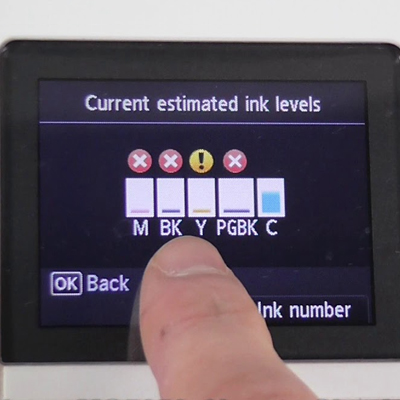
 how to check your ink levels
How to check ink levels on a HP printer
Running low on ink is most annoying when you are in a rush to print. Most HP printers let you check ink levels in a few quick places: the HP app, the printer screen, or your computer settings. Menu names vary by model, and the figures you see are usually estimates rather than exact measurements.
This guide starts with the fastest checks, then shows how to check ink levels on Windows and on a Mac, plus simple fixes when the levels do not appear.

Quick ways to check ink levels on HP printers
If you want the quickest route, try the HP app first, then the printer screen, then your computer settings.
|
Method |
Best for |
What you see |
Typical time |
|
HP app on phone or computer |
Most models |
Estimated supply levels |
1 to 2 minutes |
|
Printer screen |
Touchscreen models |
Ink or supplies bars |
30 to 60 seconds |
|
Windows printer settings |
Windows users |
Status or supplies tab |
1 to 2 minutes |
|
Mac settings or Print Centre |
Mac users |
Supply Levels tab, where supported |
1 to 2 minutes |
HP runs through these options in its guide on how to check ink or toner levels on your HP printer. For example, if your DeskJet has no screen, the app is usually the simplest way to view supplies. That gives you a clear starting point. Next, you will see how to check levels in the app.
Check ink levels with the HP app
The HP app is often the simplest way to check ink levels because it shows estimated supplies next to your printer once the device is connected.
- Install the HP app and follow the setup for your model.
- Confirm your printer is on and connected to the same network as your device.
- Open the app, select your printer, and look for estimated ink or toner levels.
If you need the official start point for setup, use the HP setup portal. For example, if you print homework weekly, checking the app on Sunday makes it easier to reorder before Monday. This habit prevents last-minute surprises.
Next, if you are beside the printer, the control panel can be just as quick.
Check ink levels on the printer screen
Many HP printers show ink information on the control panel. Look for Ink, Supplies, or a droplet icon, then open the screen that shows bars or percentages for each cartridge.
If your menu looks different, start at Home, then open Printer Info, Tools, or Settings and look for Supply Levels. HP includes control panel checking as a common method in how to check ink or toner levels on your HP printer.
For example, on an OfficeJet Pro touchscreen, you tap the droplet icon, then open Supplies to view the estimate. Handy when you are at the printer. Next, Windows settings are another option if you print from a PC.
Check ink levels in Windows
Windows can show supply information in printer settings, depending on your driver.
- Open Settings, then Bluetooth and devices, then Printers and scanners.
- Select your HP printer, then open Printer preferences or Printer properties.
- Look for a tab labelled Supplies, Services, or Estimated Ink Levels.
HP references the Supply Levels tab in its cartridge guide, which can help you recognise the wording you are looking for. See how to find what ink cartridge your HP printer uses. For example, if the Supplies tab is missing on a shared laptop, the app is usually the faster fallback. If the driver does not show up with supplies, the app is the safer option. Next, Mac users can check ink levels in the Printer Settings or Print Centre.
Check ink levels on a Mac
On a Mac, supply levels may appear in printer settings or Print Centre, depending on your driver. Apple explains the steps in Check a printer’s ink levels using your Mac. Apple also points to the Supply Levels tab in Print Centre, which is available in Manage printers and print jobs with Print Centre on Mac.
For example, if a job stalls, open Print Centre, select the printer, and check Supply Levels before reprinting. Try both routes because support varies by model. Next, a status report can help when menus vary by model.
Print a status report when levels are unclear
Some HP printers can print a status report or supplies report that includes ink or toner information plus basic diagnostics. The option is often under Reports, Tools, or Printer Maintenance.
HP outlines common ways to check levels on its support page for checking HP printer ink or toner levels. For example, before a big print run, you can print a report and confirm supplies so you do not stop halfway. A report helps when menus differ. Next, if levels do not show at all, work through simple fixes first.
Fixes when ink levels do not show or look wrong
If ink levels are missing or clearly off, start with the connection and refresh steps first.
- Confirm the printer is online and connected to the same network as your device.
- Restart the printer, then reopen the app or printer settings and wait a minute.
- Update the driver or reinstall the HP software if your computer does not show supply info.
- Reseat the cartridges and close the access door fully, then wait for the printer to recognise them.
HP notes that estimated levels may take time to appear after connection, and explains how to check ink or toner levels on your HP printer. For example, if levels are stuck, a restart plus a short wait often refreshes the estimate. Most issues clear after a refresh. Next, once you can see levels, confirm the right cartridge before you buy.
How to choose the right replacement HP cartridge
If you are checking ink levels because you plan to reorder, confirm the cartridge number first. The quickest checks are your current box, the label inside the access door, or the cartridge itself.
If you want to browse by series, start with our HP ink and toner cartridges. HP explains where to find the cartridge number and how to match it in how to find what ink cartridge your HP printer uses.
Here are a few common examples:
- 305 series: start with HP 305 ink cartridges. If you want a bundle, an HP 305 multipack can be easier to reorder.
- Higher capacity: if you print often, a Compatible HP 305XL can reduce how often you replace supplies.
- 302 series: match the number carefully, then choose the HP 302 black ink cartridge and HP 302 tri-colour ink cartridge. For a high-capacity compatible colour option, see Compatible HP 302XL colour.
For example, you can confirm the code inside the access door, then choose standard for occasional printing or high capacity if you print weekly. The number matters most. Next, finish with a brief recap to speed up the next check.
Conclusion
Checking ink levels on an HP printer is easiest when you start with the method that fits how you print each week. The HP app is often the quickest, but the printer screen and your computer can work just as well once everything is connected. If the levels appear odd, refresh the connection, restart the printer, and print a status report before assuming a cartridge has failed.
When you are ready to replace supplies, confirm the cartridge number first so you buy the right one. Browse Choice Stationery’s printer ink and toner cartridges to reorder online when you need them.
FAQs
Can I check ink levels without the HP app?
Often, yes. Many HP printers show a supplies or ink icon on the control panel, and some show levels in your computer printer settings. If your printer has no screen, the app is usually the fastest option.
Why are my ink levels not showing or stuck?
This can happen if the printer is offline, the app cannot see the printer on the same network, or a driver is missing on your computer. Restart the printer and reopen the app or printer settings to refresh the estimate.
Are HP ink levels accurate?
They are typically estimates. A printer may mark a cartridge as low earlier to protect print quality, especially if you print photos or use colour often.
Where is the Supply Levels tab on Mac?
Open Printers and Scanners, select your printer, then look for Options and Supplies or check Print Centre for a Supply Levels tab.
Do I need to replace cartridges as soon as they are low?
Not always. If print quality is still fine, you can usually keep printing for a while. For anything time-sensitive, keep a spare set so a low warning doesn't stop you mid-job.
