

How to Change and Reset the Toner on a Brother Printer
Changing the toner on a Brother printer normally involves removing the toner-and-drum assembly, fitting the new cartridge and putting the assembly back correctly. In many cases, that is all you need to do. If Toner Low or Replace Toner is still showing afterwards, check that the cartridge and assembly are fitted properly before trying a reset. Some Brother printers do have a manual toner-reset procedure, but the buttons and steps differ by model, so use Brother's instructions for your printer.
When Should You Change the Toner in a Brother Printer?
You should usually change the toner when your Brother printer shows Replace Toner, or earlier if print quality has become unacceptably faint. A Toner Low message is normally an advance warning rather than an immediate stop signal, so you may still be able to print while preparing the correct replacement. The exact wording and behaviour can vary by model.
Toner Low generally means the toner supply is running down, but printing may still continue. It gives you time to prepare a replacement rather than necessarily meaning that printing must stop straight away.
Replace Toner means the printer has reached the stage where the toner cartridge should be replaced on that model.
Toner and the drum unit are separate consumables in Brother laser printers. Replacing the toner does not mean the drum automatically needs changing too. Brother explains the difference between toner cartridges and drum units.
Print quality may also become lighter or incomplete as toner runs low. However, warning behaviour varies between models, so check the exact message before deciding what needs attention.
How Do You Change a Brother Toner Cartridge?
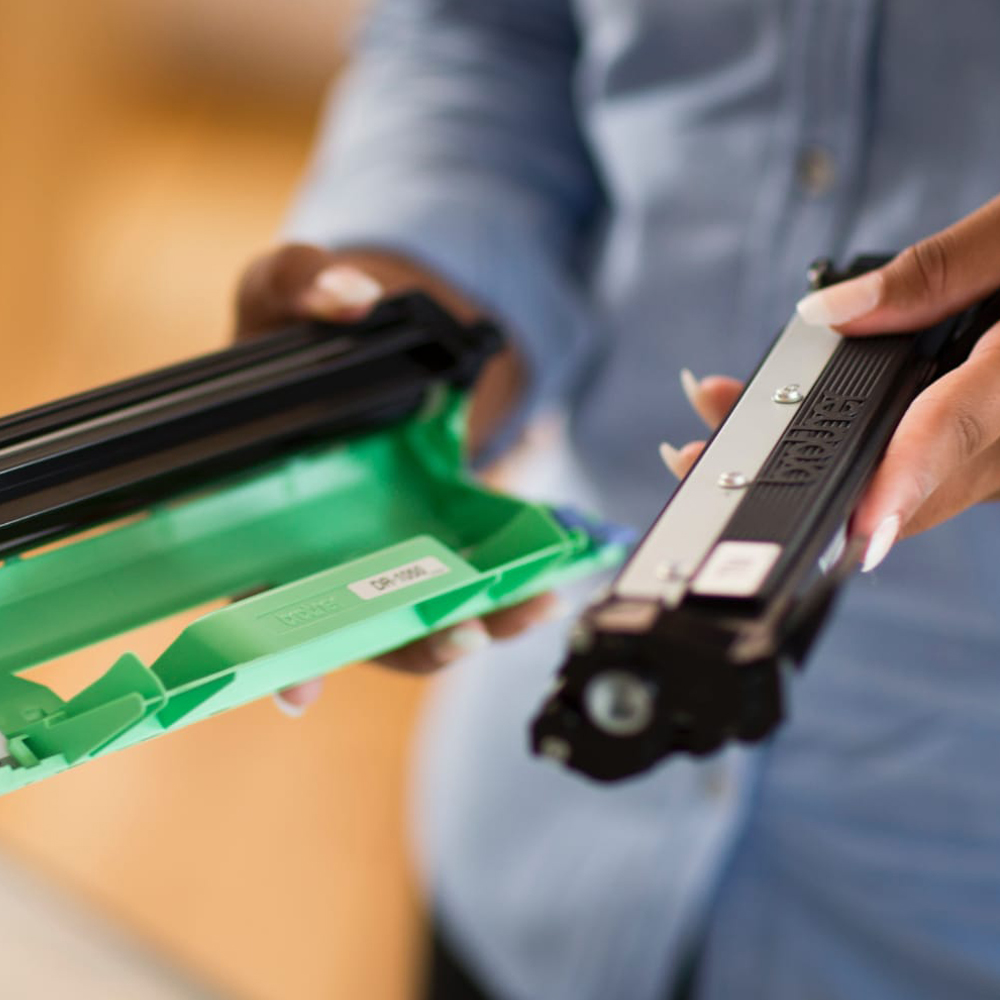
Once you have the right cartridge, changing the toner is usually simple. The cover position, release lever and cartridge layout can differ from one Brother printer to another, but many laser models with separate toner and drum units follow the same basic steps. If your printer looks different from the sequence below, check Brother's instructions for your model.
- Open the printer cover. Use the cover specified in the instructions for your exact model.
- Remove the toner-and-drum assembly. Pull the complete assembly out carefully where the printer uses this design.
- Release the old toner cartridge. Use the locking lever or release mechanism on the drum unit.
- Unpack the new toner cartridge. Remove its protective packaging as directed.
- Fit the toner into the drum unit. Push it firmly into the correct position so it is properly seated.
- Clean the corona wire if instructed. On applicable models, move the cleaning tab from side to side and return it to its home position.
- Reinstall the assembly. Put the complete toner-and-drum assembly back into the printer.
- Close the cover. Allow the machine to complete its normal checks.
Brother's official Replace Toner guidance shows this type of process on relevant models.
If you need a new toner cartridge, check the printer model and toner reference before choosing Brother toner cartridges.
Do You Need to Reset the Toner After Replacing It?
Not every Brother printer needs a manual toner reset after a cartridge change. On many models, the printer updates the toner status when a new cartridge is fitted correctly, and the toner-and-drum assembly is reinstalled. If the warning clears after replacement, you do not need to reset anything else.
There is no single toner-reset sequence that applies to every Brother printer. Different printer families can use different menus, controls or toner-detection methods.
If a toner warning remains after replacement, check that the new cartridge and assembly are fitted correctly before trying anything else. Only use a manual toner-reset procedure when Brother provides one for your printer model.
Button combinations or hidden menus published for another Brother printer should not be assumed to work with yours.
Why Does Brother Still Say Replace Toner After You Changed It?
If Replace Toner, Toner Low, or another toner warning remains after you have fitted a new cartridge, start by checking the replacement itself.
Work through these checks:
- Confirm that you replaced the toner rather than the drum. They are separate consumables.
- Make sure the toner is new and correctly fitted. On supported models, Brother states that a new, unused cartridge is needed for the toner status to reset correctly.
- Check the toner-and-drum assembly. Make sure the toner is firmly seated inside the drum.
- Reinstall the complete assembly. Remove it and fit it back into the printer correctly.
- Confirm the cartridge reference. It needs to be suitable for the exact printer model.
- Check Brother's instructions for your model if the warning still remains.
Brother provides specific guidance for toner warnings that remain after replacement.
If the printer shows No Toner, Cannot Detect or a different cartridge-related message instead, that may be a separate recognition fault rather than a normal Replace Toner issue.
Can You Keep Printing When Brother Says Replace Toner?
Some Brother printers support Continue Mode, which allows printing to continue after the normal Replace Toner warning.
Continue Mode is not the same as replacing the cartridge or carrying out a toner reset. It tells a supported printer to continue using the remaining toner beyond its estimated replacement point.
There are limitations:
- print quality may become faint
- the toner warning can remain visible
- the printer can eventually reach Toner Ended, when the cartridge needs replacing
- Continue Mode is not available or activated in the same way on every Brother model.
Brother's Continue Mode guidance confirms that supported printers can continue beyond the estimated toner life, although print quality is no longer guaranteed.
When a new toner cartridge is installed on supported models, Continue Mode returns to the normal Stop setting.
What Should You Do If Your Brother Model Requires a Toner Reset?
If your Brother printer needs a manual toner reset, follow Brother's instructions for that model.
Brother models can use different types of controls, including:
- menu and arrow buttons
- Clear, Back or OK buttons
- touchscreen menus
- model-specific button combinations
The sequence can also differ between printer families. A procedure that works on one HL, DCP or MFC model should not be treated as a universal Brother toner reset.
Check the full printer model number, then use the corresponding Brother support instructions. If the procedure asks you to choose a toner type or capacity, select only the option that matches the cartridge and instructions for that model.
Continue Mode is also separate from a toner reset. Continue Mode allows supported printers to carry on printing after a warning, while a reset is a model-specific process used only where the printer's instructions require it.
What Should You Check Before Buying Replacement Toner?
Before ordering a replacement toner, make sure the toner is actually the part that needs attention and match the cartridge to your printer model. Brother printers can use different cartridge references, colours and capacity options, even across models that look very similar. Checking these details first helps you avoid ordering the wrong cartridge.
Check:
- the full Brother printer model number
- the correct toner cartridge reference
- whether you need black or a particular colour cartridge
- whether the model supports different standard or higher-capacity toner options
- whether the warning is actually about toner
Do not choose a cartridge simply because it looks similar to the one already installed. Cartridge references and supported options vary between Brother printer models.
If the printer is showing a drum warning rather than a toner warning, the toner may not be the part that needs attention. Toner cartridges and drum units have separate replacement cycles and warning messages.
FAQs
Why does my Brother printer say Toner Low after I fitted a new cartridge?
Check that the new cartridge is made for your printer model and is seated properly inside the drum unit. Remove and reinstall the toner-and-drum assembly if needed. If the warning persists, check Brother's instructions for your model, as toner detection and reset behaviour can differ.
Can a Brother printer still print when toner is low?
Often, yes. Toner Low usually warns that the toner supply is running low rather than indicating it is completely exhausted. Some Brother models also offer Continue Mode after a later Replace Toner warning, although print quality may decline and the feature depends on the model.
Is resetting Brother toner the same as resetting the drum?
No. The toner cartridge and drum unit are separate consumables with different replacement and reset processes. A toner reset should not be used to clear a drum warning, and a drum reset should not be used for a toner warning.
