
 Brother Drum Unit: What It Is & When to Replace It | Choice Stationery
Brother Drum Unit: What It Is, When to Change It and How to Clear a Drum Error
A Brother drum unit is a key part of a laser printer's imaging system. It works with the toner cartridge to place the toner image onto the paper, but on Brother laser printers the drum and toner are separate components and usually have different replacement cycles. If your printer shows a drum warning, do not assume straight away that you need a new toner or even a new drum. The correct next step depends on the exact message, the print quality and whether the drum has recently been replaced.
What Is a Brother Drum Unit?
The drum unit is an electrically charged cylinder that works with the toner cartridge to create the printed image. Toner provides the powder used to form the text or image, while the drum helps transfer that toner onto the paper before it is fixed in place.
Brother uses separate drum and toner components in its laser printers, so replacing an empty toner cartridge does not automatically mean the drum needs changing too. Brother explains the difference in its guidance on toner cartridges and drum units.
A drum generally lasts longer than a toner cartridge, although its actual service life depends on the printer model, drum reference and how the machine is used.
What Do Brother Drum End Soon, Replace Drum, Drum Stop and Drum! Mean?
Brother printers can display several drum-related messages, and each points to a slightly different stage or fault. Some warnings simply tell you that the drum is nearing the end of its expected life, while others mean replacement is due or that the printer has detected a problem with the drum assembly. Reading the message correctly helps you avoid replacing parts unnecessarily and tells you whether to keep printing, clean or refit the drum, or prepare a replacement.
- Drum End Soon means the drum is approaching the end of its expected life. Printing can continue on models that use this message.
- Replace Drum means the printer is indicating that the drum unit should be replaced.
- Drum Stop means the drum has reached the replacement point on models that use this warning.
- Drum! or Drum Error can indicate a dirty corona wire, an incorrectly installed toner-and-drum assembly or a drum that has reached the end of its life.
Check the exact message before deciding whether the drum needs cleaning, refitting, replacing or resetting.
When Should You Replace a Brother Drum Unit?
Replace the drum when your Brother printer displays the relevant replacement warning or when Brother's troubleshooting guidance for your model indicates that the drum has reached the end of its useful life.
Print quality can also provide clues. A worn drum may cause repeated marks, black spots or unwanted lines on printed pages. These symptoms can have other causes, however, so poor print quality alone does not prove that the drum needs replacing.
Brother does not use one universal drum-life figure across every printer. Rated life varies between drum units and models, so check the specifications for your exact printer and drum reference rather than relying on a general page estimate.
Can You Keep Printing When Brother Says Drum End Soon?
When Drum End Soon appears, Brother says you can continue printing on models that use this warning. The message means the drum is approaching the end of its life rather than that printing must stop immediately.
You can continue while the print quality remains acceptable and prepare the correct replacement drum for when it is needed.
Brother recommends replacing the drum when the print quality is no longer acceptable or when Replace Drum appears.
If a replacement is genuinely needed, confirm the exact printer model and drum reference before choosing from the available printer drum units.
How Do You Clear a Brother Drum Error?
A drum error should not automatically be treated as a signal to reset the drum counter. Start by identifying the exact message and then work through the appropriate checks.
- Check the drum message. Confirm whether the display says Drum!, Drum Error, Drum End Soon, Replace Drum or something similar.
- Clean the corona wire if required. On relevant Brother models, a dirty corona wire can cause a Drum! or Drum Error message. Follow the cleaning procedure for your printer and return the cleaning tab to its correct position.
- Check the toner and drum assembly. Make sure the toner cartridge is correctly fitted into the drum unit and that the complete assembly is properly seated in the printer.
- Refit the assembly if necessary. Remove and reinstall it according to Brother's instructions for your model.
- Replace the drum if the fault remains. If cleaning and refitting do not clear the warning and the drum has reached the end of its life, a new drum may be required.
Brother's Drum Error guidance confirms that cleaning the corona wire, checking the installation and replacing the drum are separate troubleshooting steps.
Use the instructions for your exact printer because the physical layout and maintenance procedure can vary between Brother models.
How Do You Replace a Brother Drum Unit?
The exact replacement process varies between Brother models, but many machines with separate drum and toner components follow a similar basic process.
Confirm the printer model and correct drum reference first. Open the printer according to its instructions and remove the toner-and-drum assembly. Where the toner cartridge fits inside the drum, release it from the old drum and fit it securely into the new one.
Handle the new drum carefully and avoid touching its sensitive surface. Reinstall the complete assembly and close the printer as directed in the model-specific instructions.
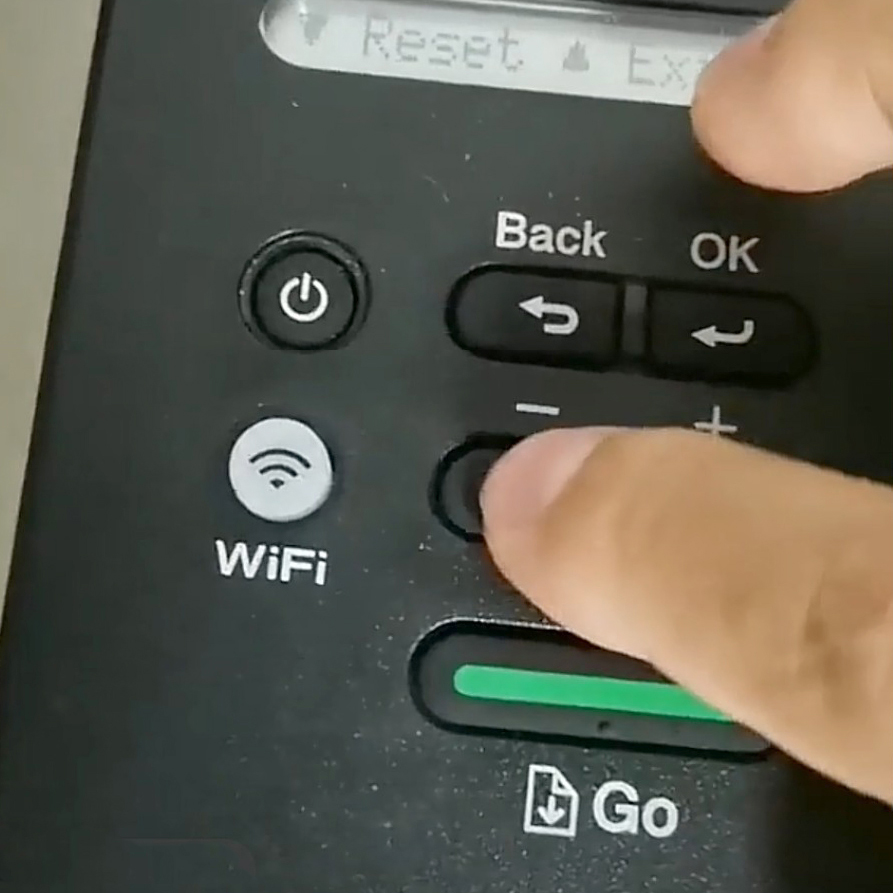
The physical replacement is not always the final step. After fitting a new drum, the printer may also require its drum counter to be reset.
Why Does Brother Still Say Replace Drum After You Changed It?
If Replace Drum, Drum End Soon or Drum Stop remains after a new drum has been installed, the drum counter may not have been reset.
Brother confirms that these warnings can continue to appear when the drum has been replaced, but the counter has not been reset. Resetting it tells the printer to begin tracking the life of the newly installed drum.
The counter should be reset only when a new drum unit has been installed. Resetting it while the existing drum is still in use can make the remaining drum-life information inaccurate.
Brother's guidance on drum warnings after replacement confirms this distinction.
The reset method varies between models. Depending on the printer, it may use:
- menu or arrow controls
- an OK or Clear button
- a Go button
- touchscreen controls
Use the drum-reset instructions for your exact Brother model rather than a reset sequence written for a different machine.
FAQs
Can a Brother drum unit be cleaned?
Some drum-related problems can be improved through Brother-approved cleaning. On many models, this means cleaning the corona wire using the tab inside the drum assembly. Brother also provides specific drum-cleaning procedures for some print-quality faults. Avoid touching the sensitive drum surface unless the instructions for your exact model tell you to do so.
Does a new Brother drum unit include toner?
Brother treats the toner cartridge and drum unit as separate consumables. A replacement drum therefore should not be assumed to include a new toner cartridge. Check the exact product description and printer model before ordering so you know which component you are replacing.
What does No Drum or No Drum Unit mean on a Brother printer?
On Brother models that use this message, No Drum or No Drum Unit means the drum is missing or is not installed correctly. Check that the toner cartridge is fitted into the drum unit correctly, and reinstall the complete assembly according to the instructions for your model. Brother's No Drum Unit guidance confirms that the drum unit may be missing or installed incorrectly.
